Get started
Build your first workflow
A step-by-step tutorial: trigger, transform data, branch, test and activate.
In this tutorial you build a workflow that receives an order, adds a discount for large orders and tells you about it. It takes about ten minutes and needs no accounts or credentials.
1. Create a workflow
- Go to Overview and click Create workflow.
- Click the name at the top and call it My first workflow.
The canvas is empty apart from a button to add the first step.
2. Add a trigger
Every workflow starts with a trigger.
- Click Add first step and choose Manual Trigger. It starts the workflow when you click Execute workflow, which is ideal while you build.
- Open the trigger and paste this test data into its payload:
{ "customer": "Asha", "amount": 120000 }3. Transform the data
- Hover over the trigger's output and click +.
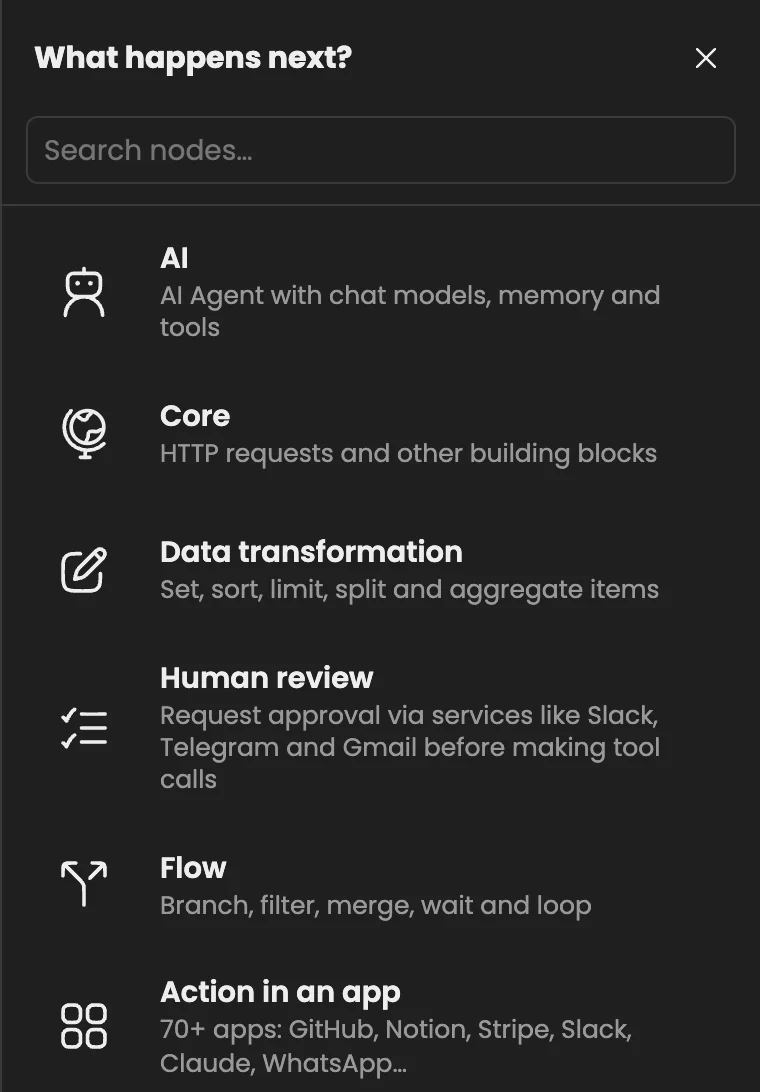
The node list opens when you click +. Search, or browse by category.
- Search for Edit Fields and add it.
- Add a field called
currencywith the valueTZS. - Add a field called
largeof type Boolean with the value{{ $json.amount > 100000 }}.
The part between {{ }} is an expression: it reads amount from the incoming data and returns true or false. The preview under the field shows the result.
4. Branch
- After Edit Fields, add an IF node.
- Set the condition to:
{{ $json.large }}is true.
Items where the condition holds leave through the true output, the others through false.
5. Act on each branch
- On the true output, add another Edit Fields node and set
discountto{{ $json.amount * 0.05 }}. - On the false output, add a No Operation node. It does nothing, which is fine for now.
6. Test it
Click Execute workflow at the bottom of the canvas. Each node shows a green tick and how many items it produced. Click a node to see its input and output side by side.
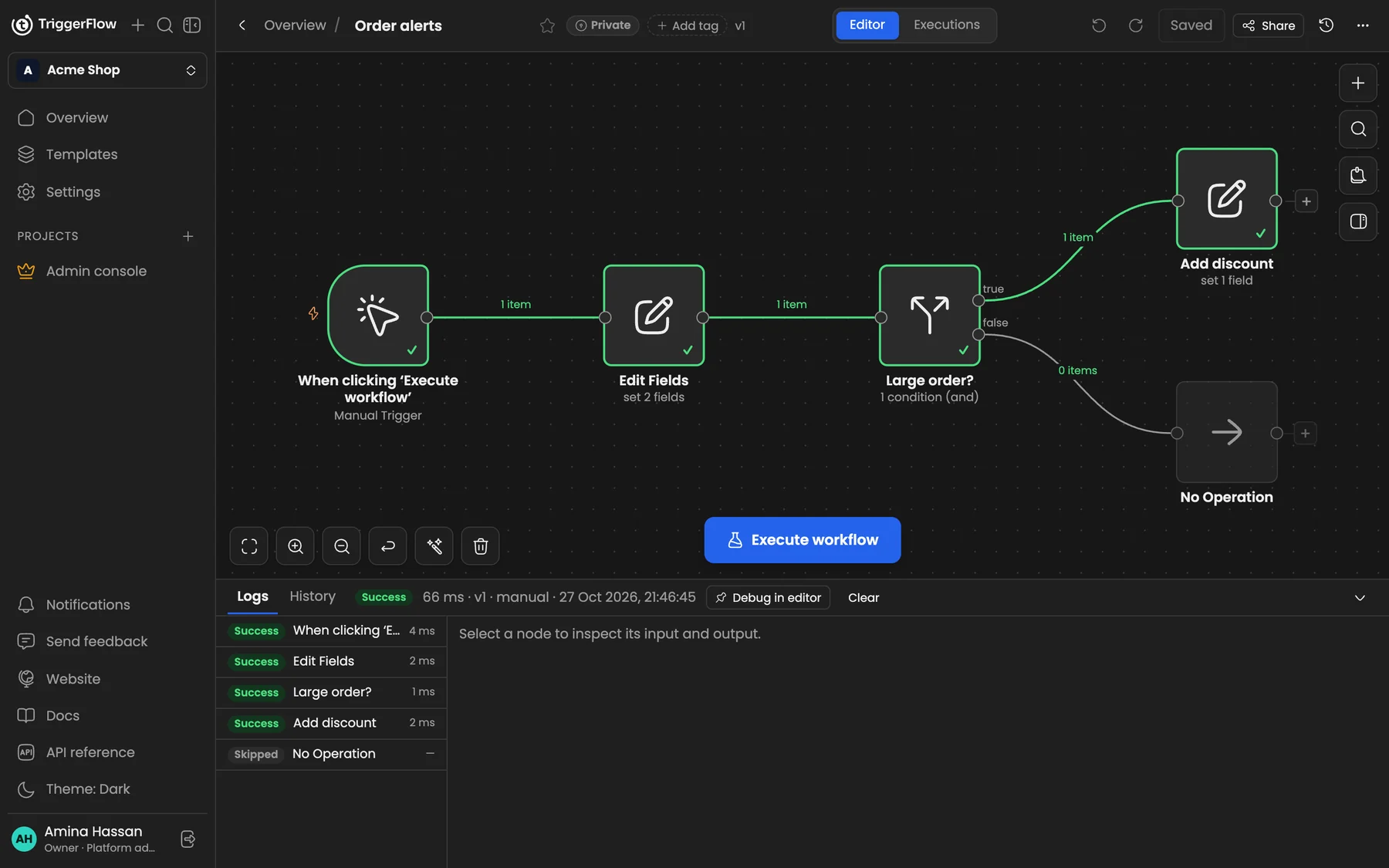
After a run, each node shows a tick and each connection shows how many items passed. The logs below list every step.
Change amount in the trigger to 50000 and run again: this time the item takes the false branch.
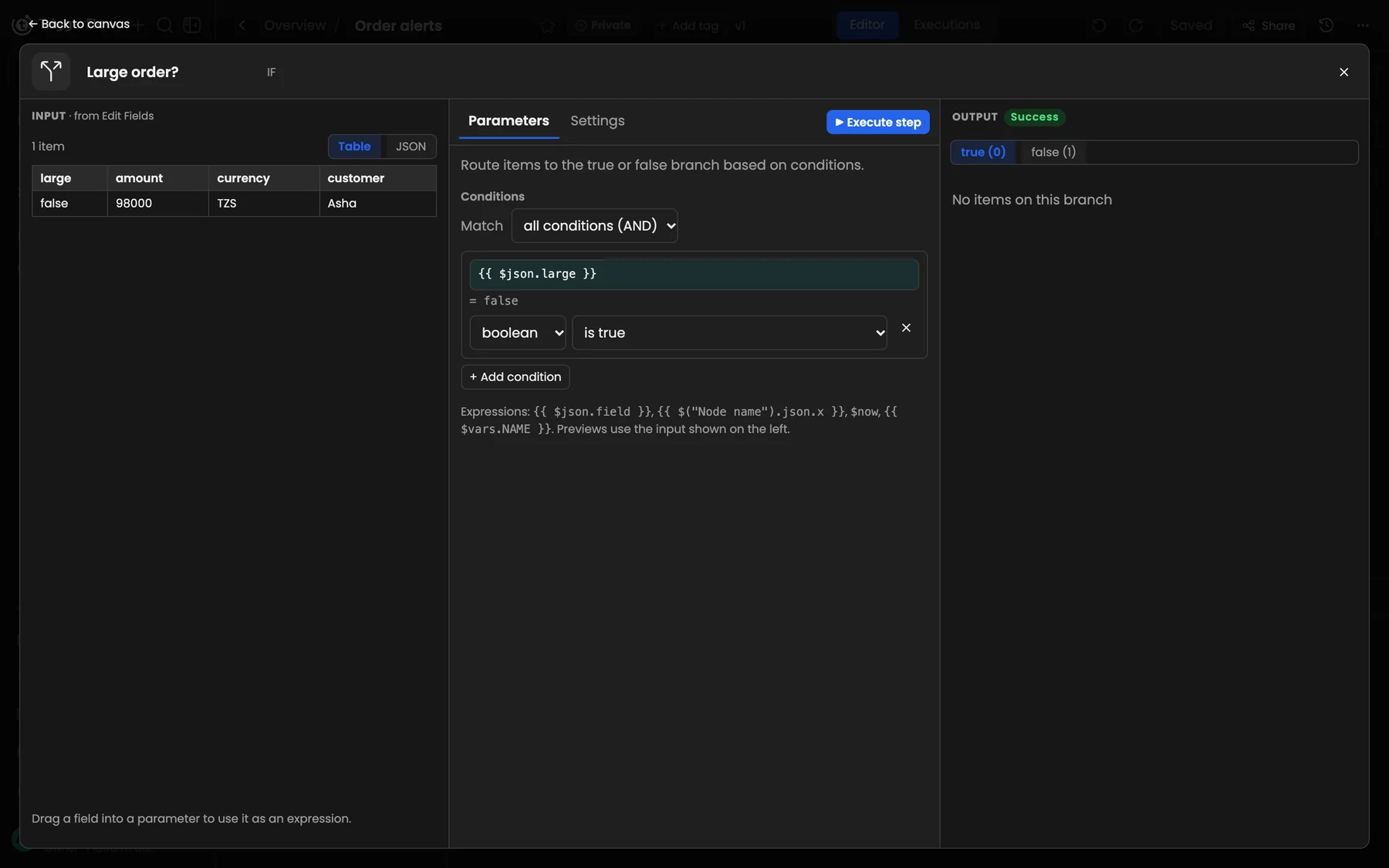
A node opened: its input on the left, its settings in the middle and its output (here the true and false branches) on the right.
7. Save and switch it on
Press Ctrl S (or ⌘ S) to save. A Manual Trigger only runs when you click, so to run automatically you would replace it with a Schedule, Webhook or Form trigger and turn the workflow Active.
Next steps
- Learn the key concepts behind what you just built.
- Connect a real app with credentials.
- Start from a template for something more complete.