Organize and collaborate
Templates
Start from a ready-made workflow and finish the setup steps.
Templates are ready-made workflows you can copy into your organization and adapt.
Use a template
- Open Templates in the sidebar (or AI templates in the AI section of the node list).
- Browse by category (AI, sales and commerce, email and messaging, productivity, operations) and open one to see its steps.
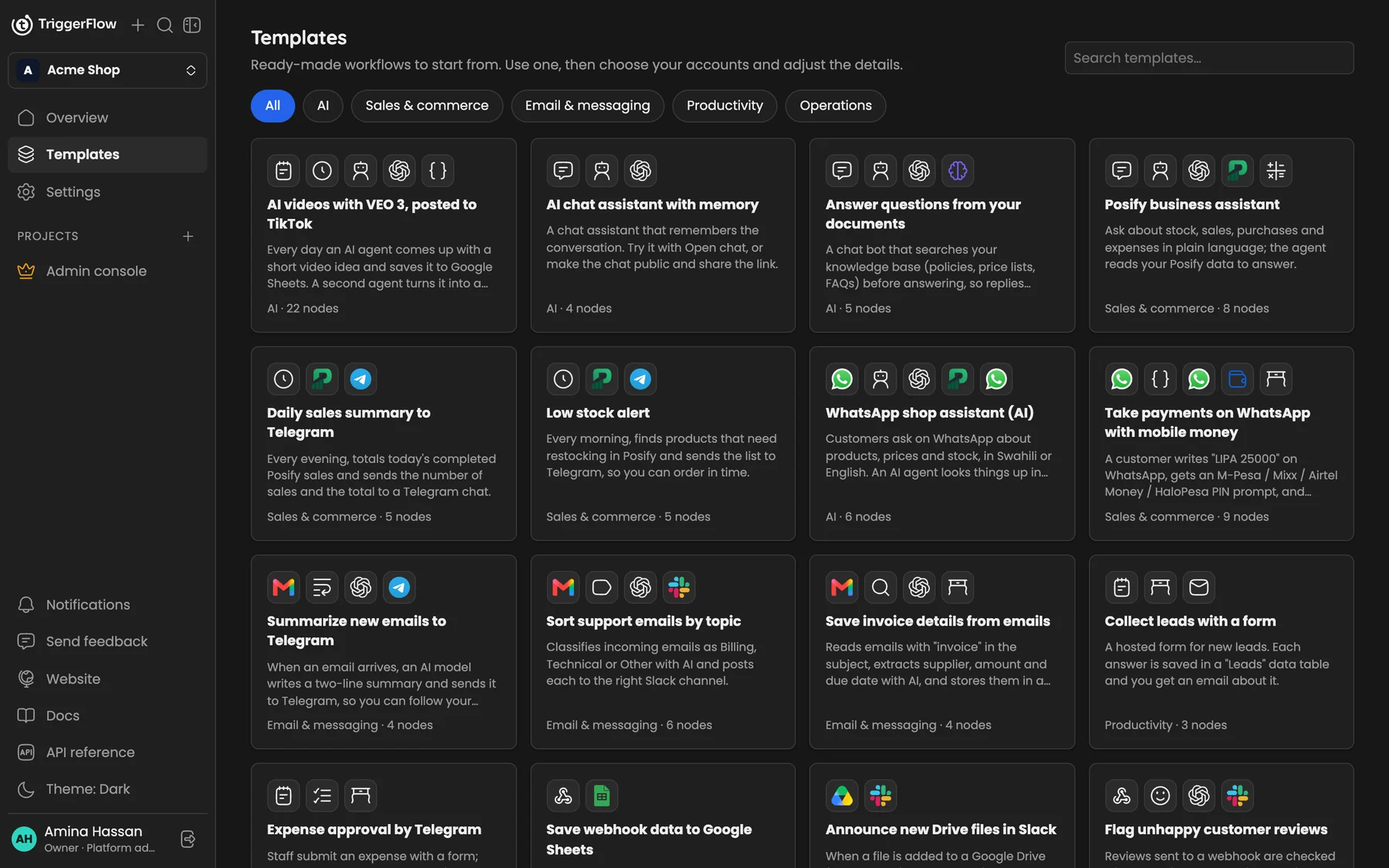
The template gallery: filter by category or search, then open a template to see its steps.
- Click Use template. A new workflow is created with fresh copies of the nodes.
- Follow the After you use it steps: choose credentials, fill in IDs and adjust messages. If you have exactly one credential that fits a node, it's chosen for you.
- Test it, then activate it.
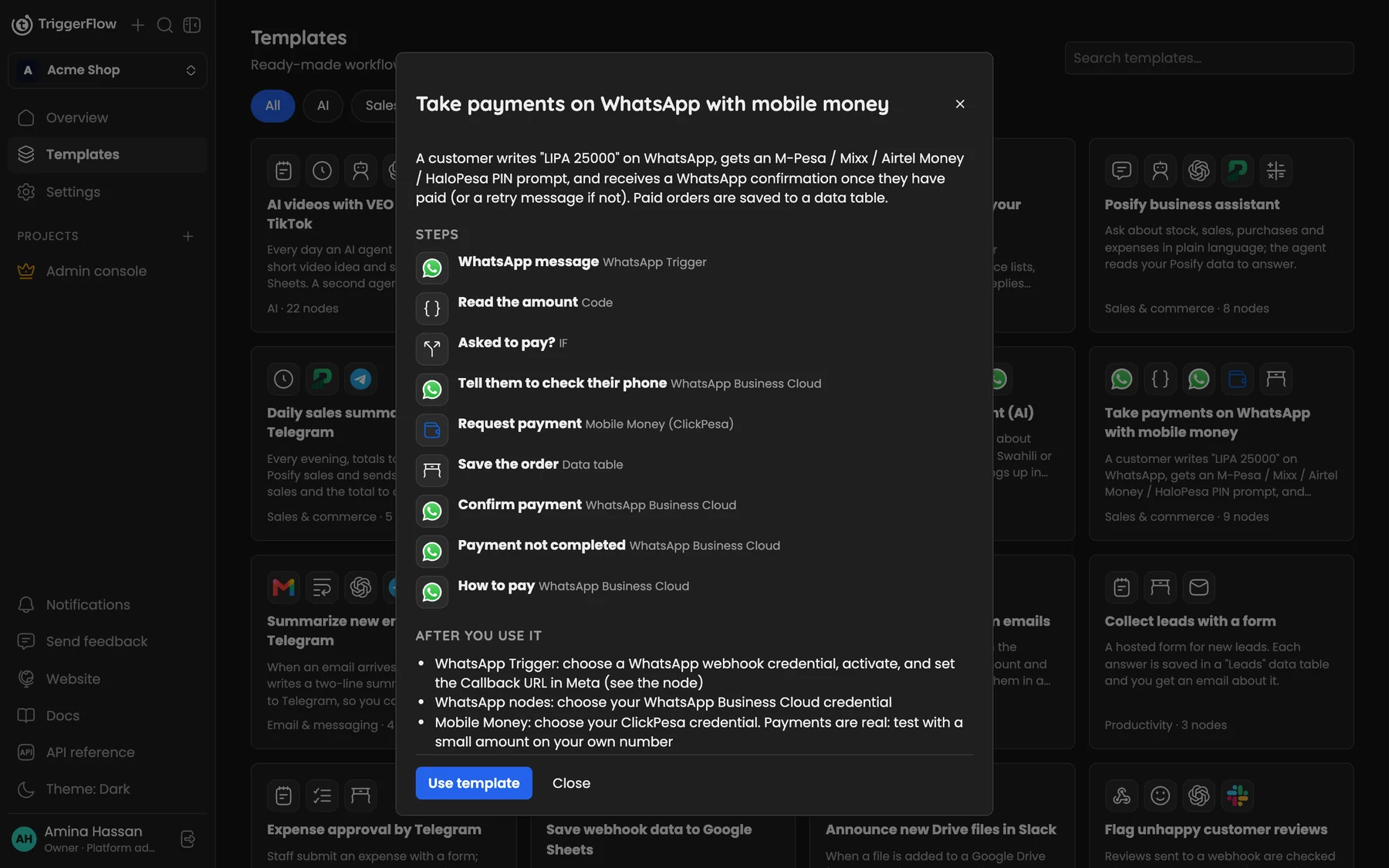
A template shows its steps and what to set up; Use template* copies it into your organization.*
Some templates
- WhatsApp shop assistant (AI): answers product and price questions in Swahili or English.
- Take payments on WhatsApp with mobile money: a customer writes "LIPA 25000", gets a PIN prompt and a confirmation.
- AI chat assistant with memory and Answer questions from your documents.
- Daily sales summary to Telegram, Low stock alert, Expense approval by Telegram.
- AI videos with VEO 3, posted to TikTok.
Templates never contain credentials, and changing your copy doesn't affect the template.